


Since this tutorial’s original publication in early 2011, it has been one of the most-read posts at Blogging Bistro, receiving an average of 2,400+ page views per month.
 So when one of my readers suggested
that I update the tutorial to include the page deletion instructions for
Facebook’s Timeline, I listened.
So when one of my readers suggested
that I update the tutorial to include the page deletion instructions for
Facebook’s Timeline, I listened.Here is the new and improved version of “How to Delete a Facebook Fan/Business Page”:
1. Log in to your Facebook account.2. Click the downward-facing arrow that’s located in the upper righthand area of your screen. Under “Use Facebook As,” click the name of the page you plan to delete.

3. Your page’s Admin Panel will probably open automatically, but if it doesn’t, click “Admin Panel,” located in the upper righthand corner of your screen, directly above the Timeline.

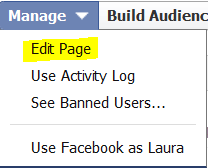
4. From the “Manage” tab, click “Edit Page.”
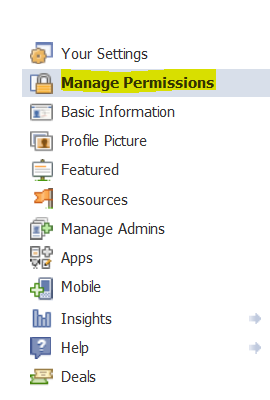
5. In the lefthand sidebar, click “Manage Permissions.”
6. Scroll down. Directly above the “Save Changes” button, you’ll see “Delete Page.” The link to the page you’re on will display next to it. Click that link.
7. A pop-up notice will inform you that if you delete your page, you’ll be able to restore it within 14 days. (Unsure whether that means 14 calendar days or 14 business days.)
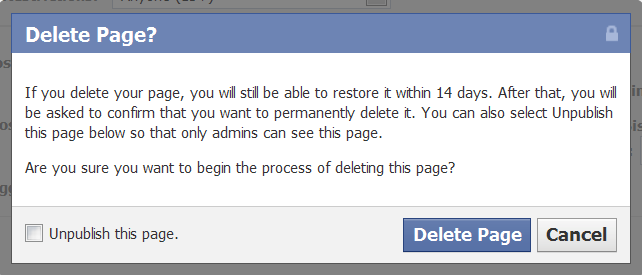
8. After that, you’ll be asked to confirm that you want to permanently delete your page.
If
you aren’t certain whether you want to permanently delete your page,
but you want to “unpublish” it (in other words, make it private so only
the page admins can view it), click the “Unpublish this page” radio
button.
Another potentially less risky
way to unpublish your page without completely deleting it is to go to
the top of the “Manage Permissions” area. Next to the “Page Visibility”
heading, click the radio button that says “Unpublish Page.” Then click
“Save Changes” at the bottom of your screen.
9. If you’re certain you want to initiate the page deletion process, take a deep breath and click “Delete Page.”


 BD Dial Codes
0 comments:
Post a Comment